
Your photos.
Your watch face.
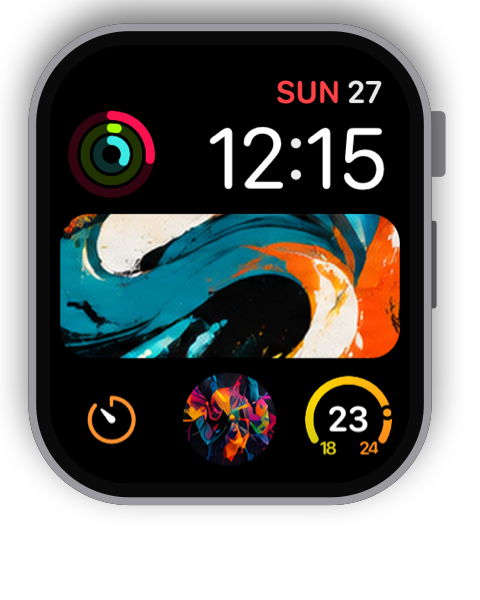
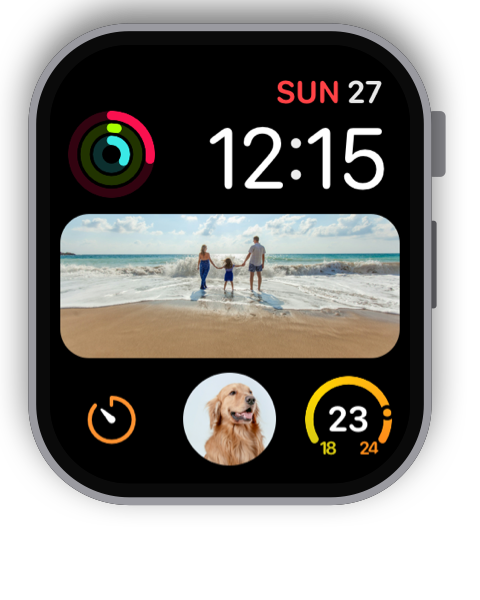
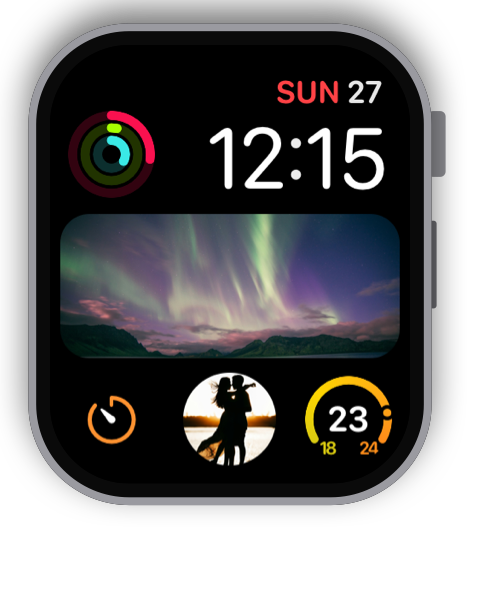
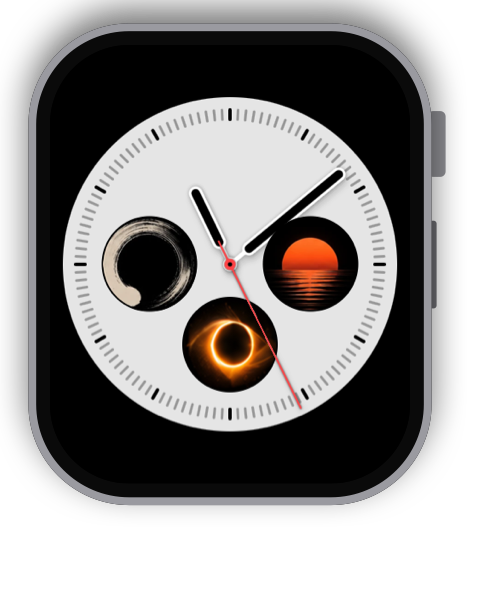
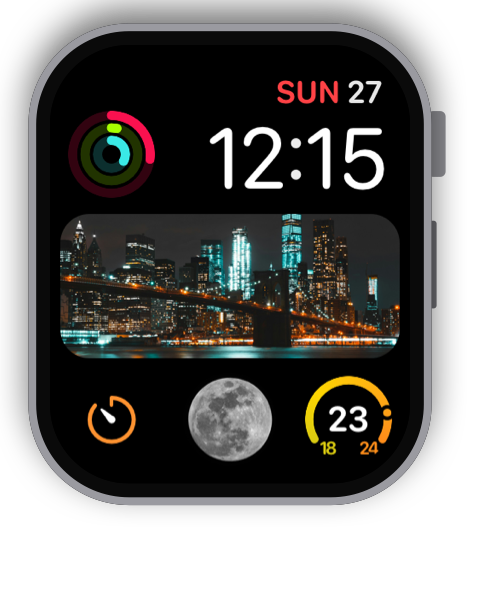
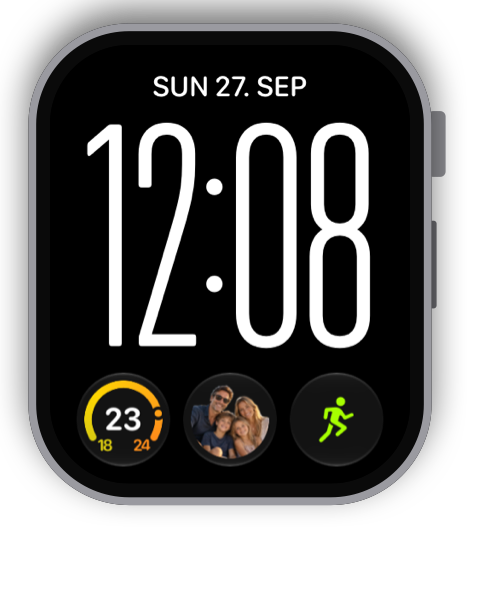
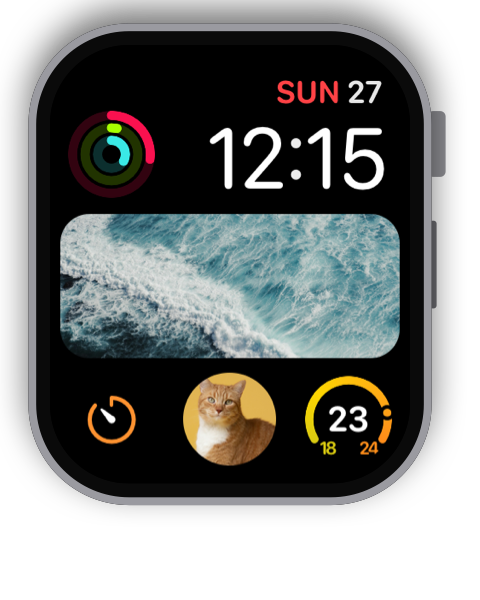
WatchAnything turns any photo, graphic or text into a complication for your Apple Watch – round or wide, on the watch faces you already love.
Download on the App StoreFor iPhone with iOS 17 or later and Apple Watch with watchOS 10 or later.
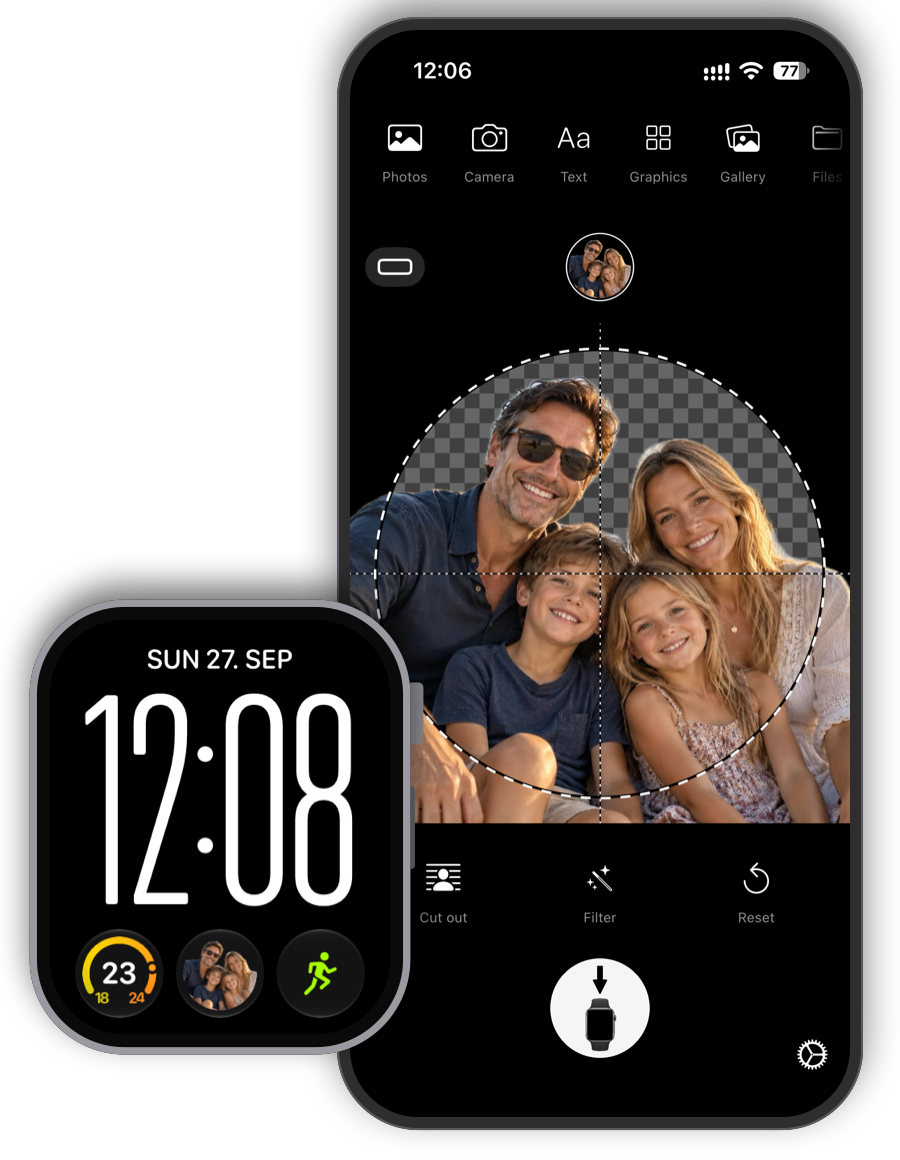
Three steps to your watch face
No settings to learn. Pick a picture, frame it, send it.
Pick a picture
From Photos, the camera or Files – or start with the built-in graphics and text.
Frame it
Choose round or wide, cut out the background with one tap and adjust the colors.
Send it
Then touch and hold your watch face, tap Edit and choose WatchAnything.
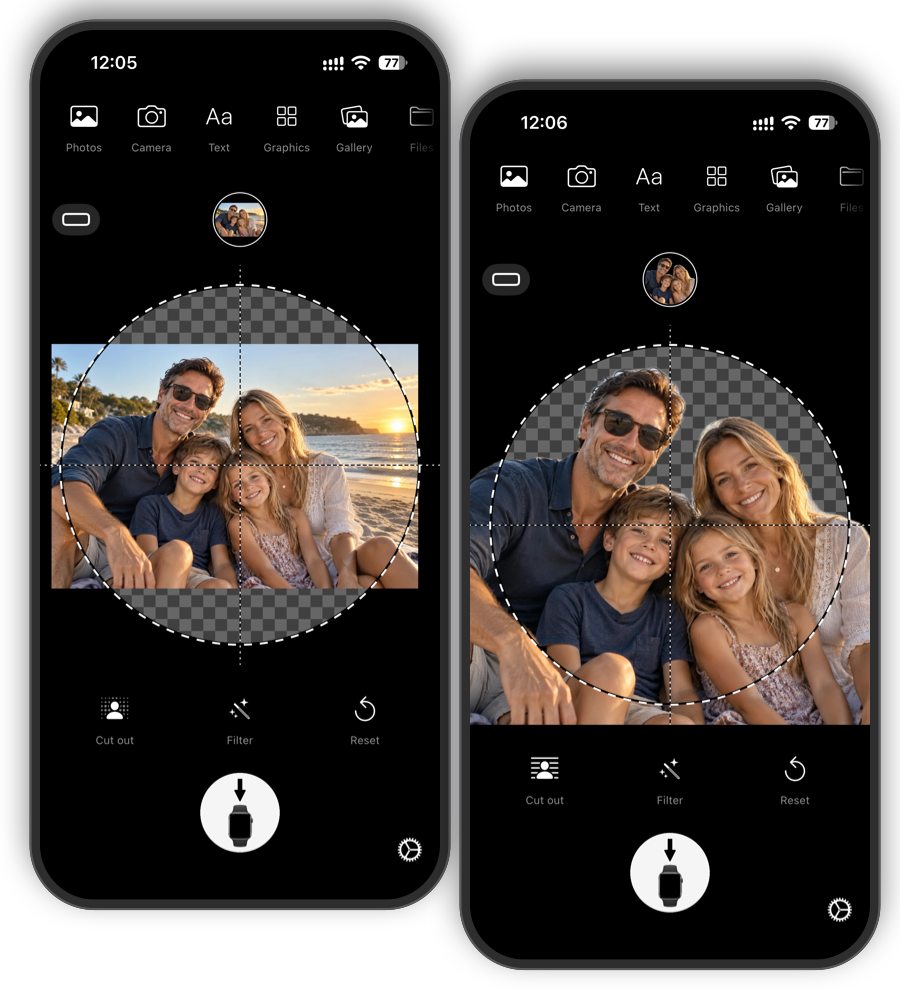
Cut out with one tap
Remove the background and your subject stands out on the watch face. When there are faces in the picture, the crop sets itself.
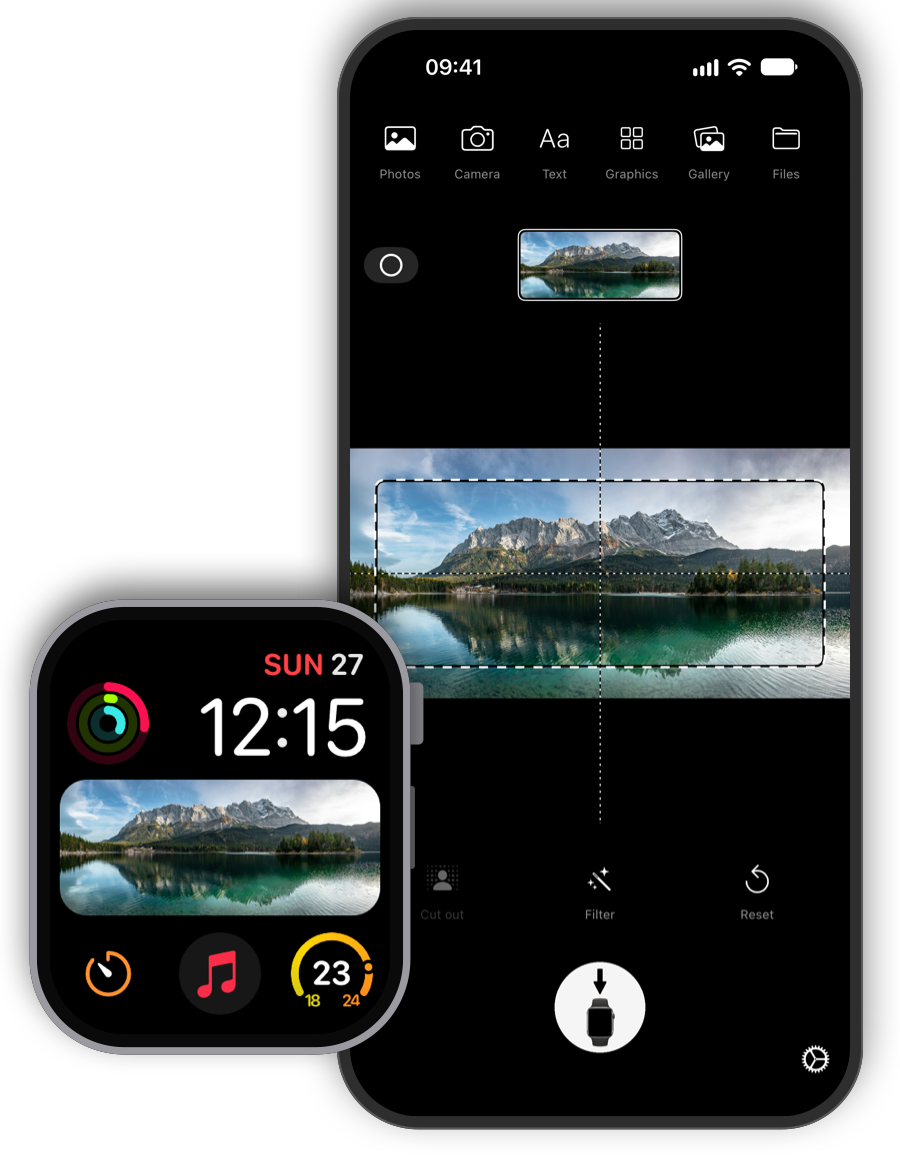
Round or wide
Small round slots or the wide slot in the middle: every picture is cropped exactly for the complication it’s meant for.
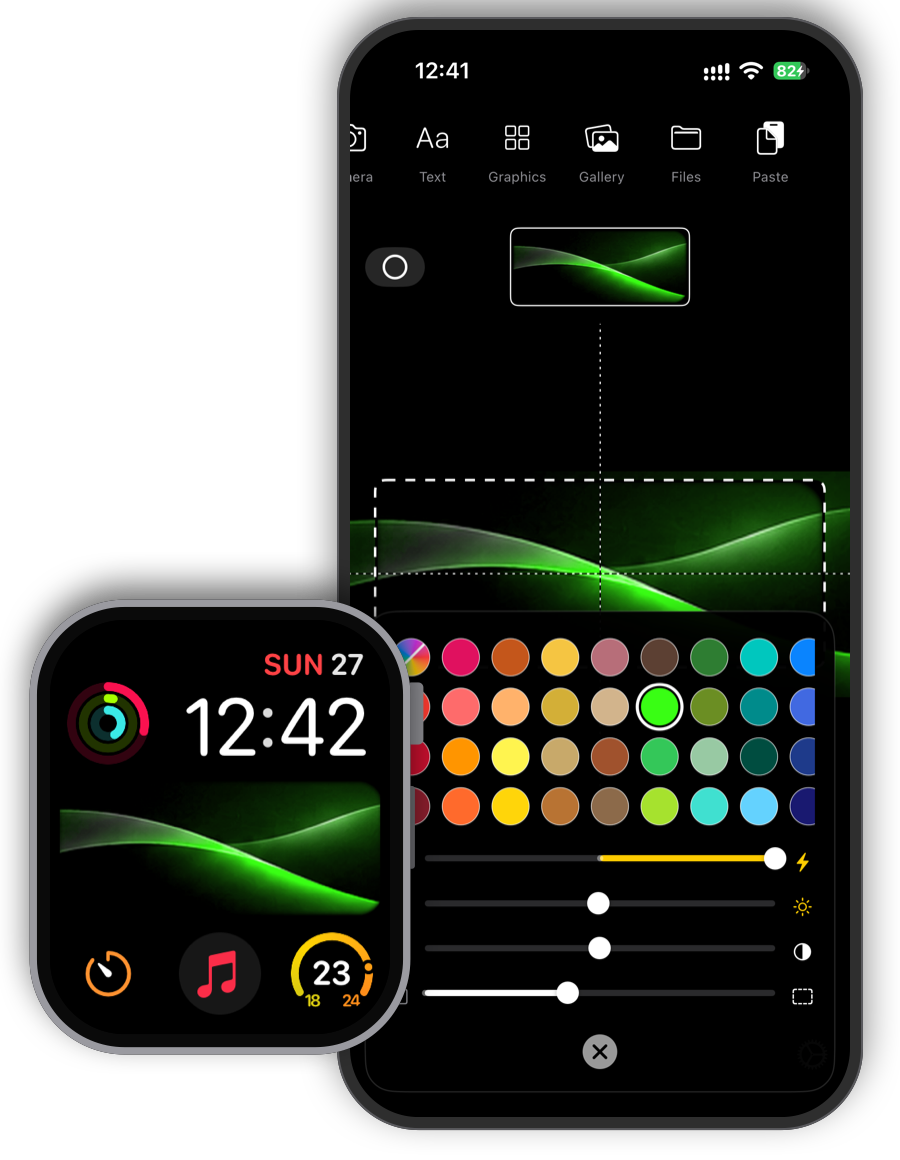
Hundreds of graphics
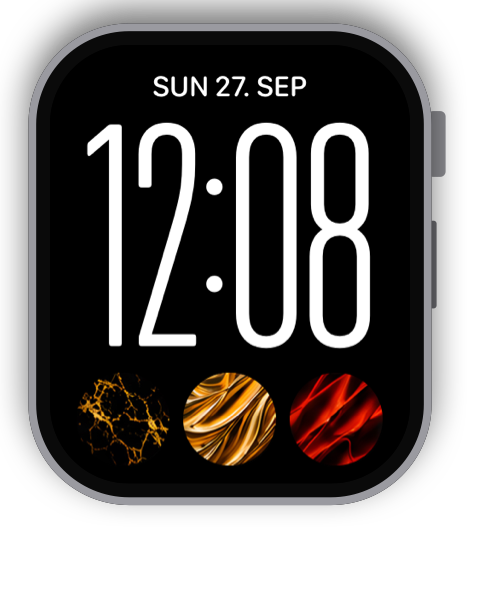
297 abstract artworks, ready to use. Tint them in any color to match your watch face or band.
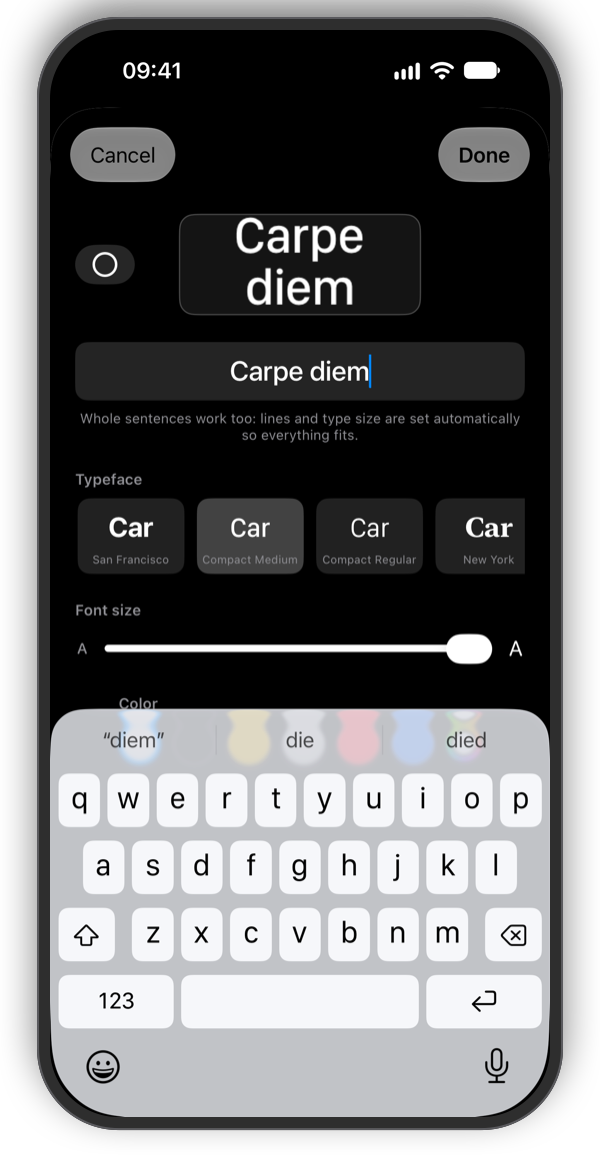
Names, initials or a quote
Type a word or a sentence in fonts like SF Compact or New York. Line breaks and size adjust automatically.
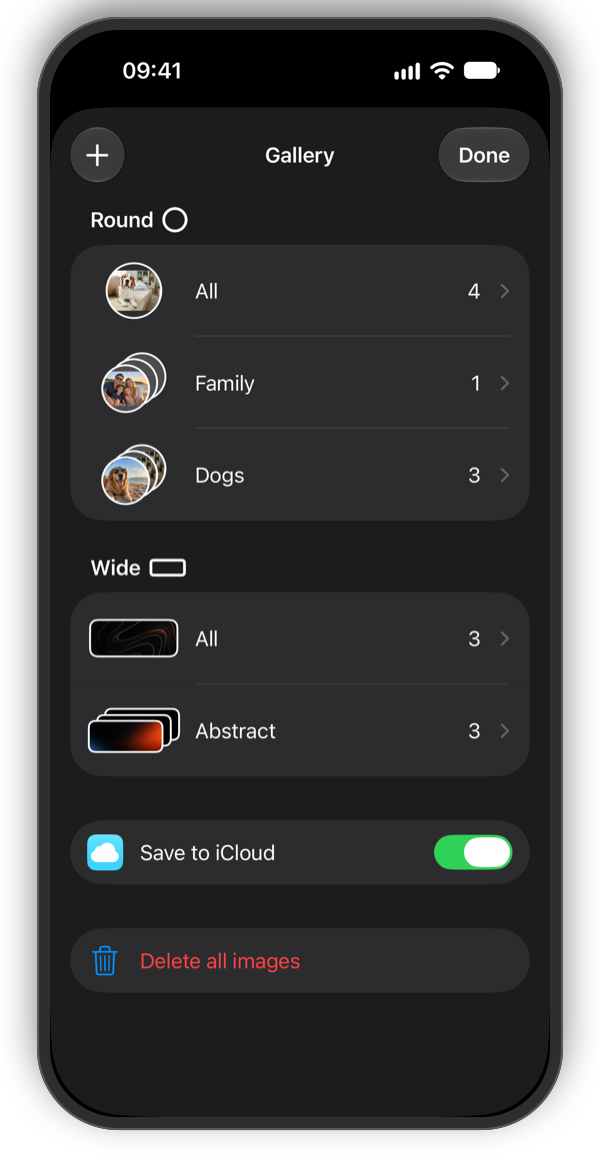
Albums as slideshows
Put pictures in an album and the complication changes them at the pace you choose. Your gallery keeps every picture for your next watch.
Ideas for your watch face
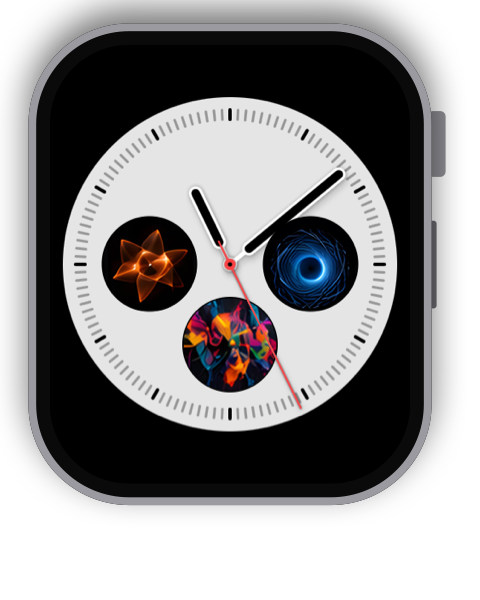
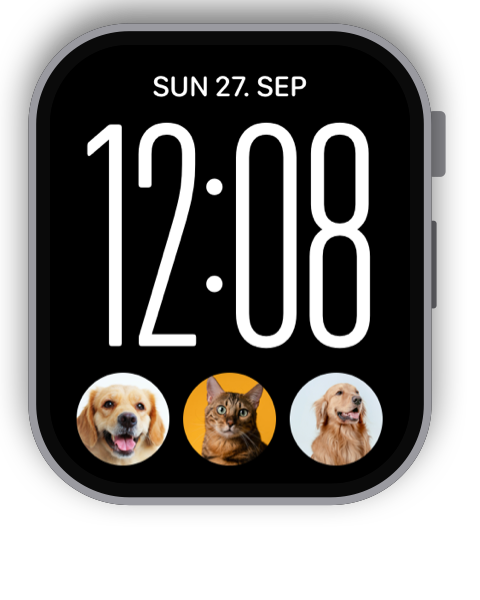
Photos, art and text on Infograph, Modular and more.
Private by design
No account, no tracking, no ads. Your pictures stay on your devices and in your private iCloud. Privacy policy
Questions & answers
How do I get an image onto my watch face?
Send the image to your watch. Then touch and hold the watch face, tap Edit, choose a complication slot and pick WatchAnything with “One image” or “Slideshow”. Your newest image is already preselected; to show a specific image or album, choose it in the complication’s settings. You can also add the complication before any image has arrived; until then it shows the WatchAnything logo.
Nothing arrives on the watch
Your watch and iPhone need to be in range, and the watch must be unlocked. Open WatchAnything on the watch once and any waiting images transfer right away. If that doesn’t help, restart both devices.
Why are the slots empty when the watch is locked?
That is intentional. Your images are personal, so WatchAnything shows nothing on a locked watch. As soon as you unlock the watch, the images are back. With the wrist lowered but not locked, they stay visible, dimmed.
Why is my image gray or tinted?
The watch face decides that, not the app. Multicolor faces show the image in color; single-color faces tint everything in their own color. Choose a multicolor face to see the original colors.